Use Cases
Designed for workflows that need more visible context.
WiseeLAB workspace systems help professionals keep tools, information, and decisions visible across different types of work.
AI Workflow
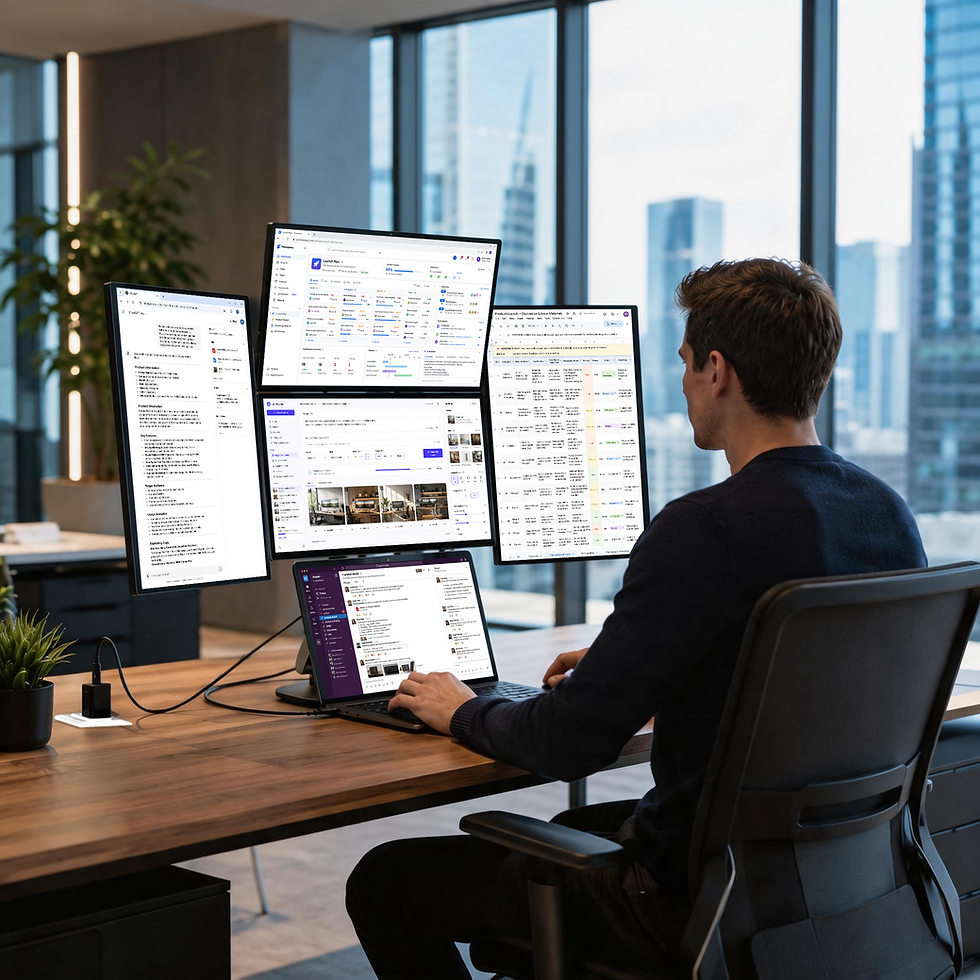
For professionals who use AI tools as part of daily research, writing, analysis, planning, or content production.
Typical Setup
・Main work area
・AI assistant or agent interface
・Source documents and references
・Drafts, prompts, or notes
・Communication or task management tools
Why It Matters
AI work is rarely a single-window task.
Professionals often need to compare prompts, AI outputs, source materials, drafts, notes, and communication at the same time.
A multi-display workspace helps keep the full AI workflow visible, so users can think, compare, refine, and act without constantly hiding and reopening information.
Trading & Market Analysis
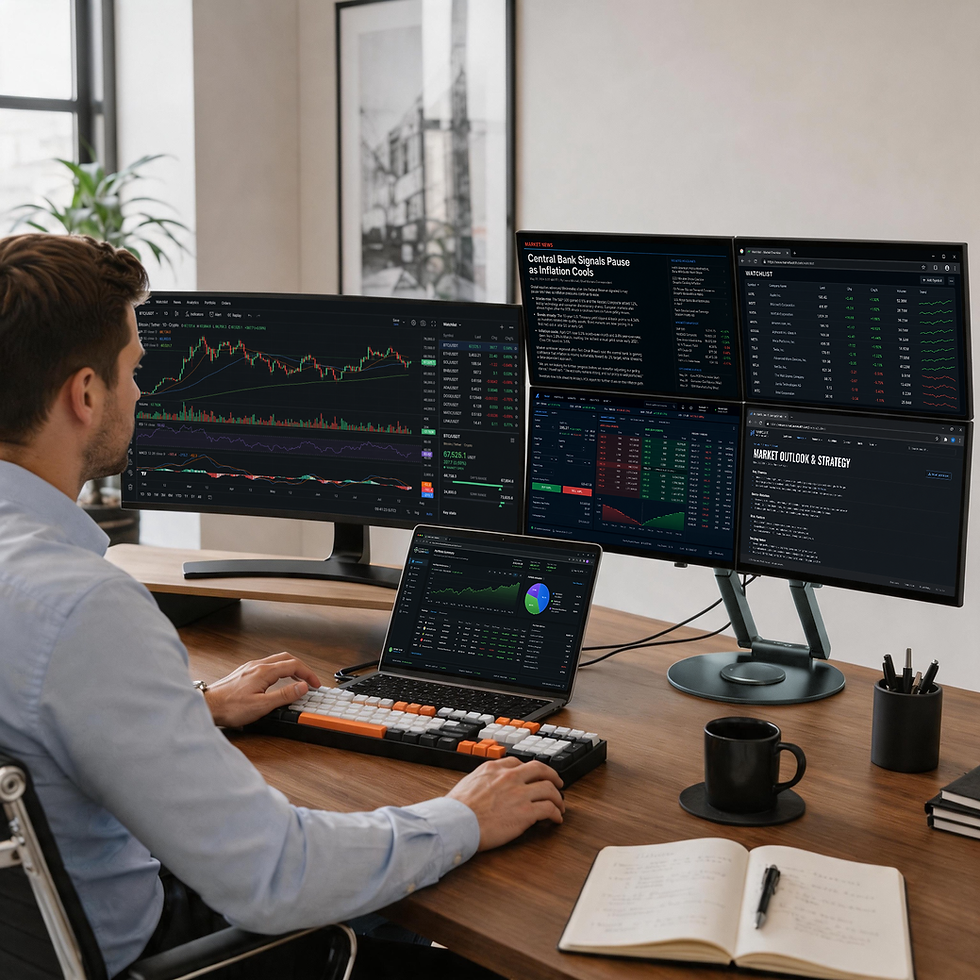
For investors, traders, analysts, and market researchers who need to follow fast-moving information and make decisions with more context visible.
Typical Setup
・Price charts
・News and market updates
・Watchlists
・Order or execution tools
・Research notes
Why It Matters
Market decisions depend on timing, context, and comparison.
When charts, news, watchlists, research, and execution tools are hidden behind separate windows, important signals can be missed.
A structured multi-display workspace helps users monitor multiple information streams while keeping the broader market context in view.
Business Operations

For operators, managers, founders, and business teams working across documents, dashboards, reports, and communication tools.
Typical Setup
・Dashboard or report
・Spreadsheet or document
・Email and messaging tools
・Reference material
・Task management system
Why It Matters
Operational work often requires checking multiple sources before taking action.
Dashboards, spreadsheets, reports, emails, internal tools, and task systems all carry different parts of the same business context.
A structured workspace reduces unnecessary switching and helps teams move faster with more information in view.
Creative Work
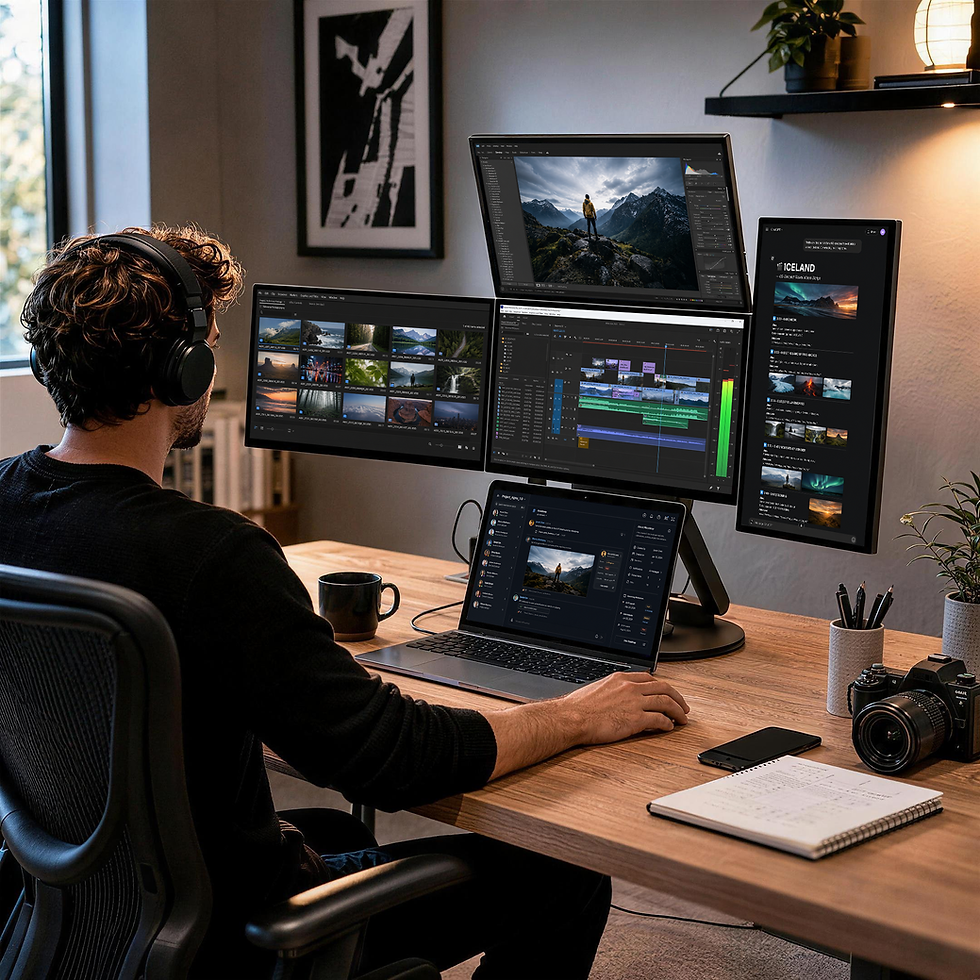
For designers, video editors, content creators, and creative professionals.
Typical Setup
・Main editing or design tool
・Preview window
・References
・Timeline or asset library
・Feedback or communication tools
Why It Matters
Creative work depends on separation and flow.
Designers, editors, and creators often move between a main canvas, references, previews, timelines, assets, and feedback.
When these elements are constantly hidden behind each other, creative decisions slow down. A multi-display workspace keeps the creative process more visible and easier to control.
Development & Technical Work

For developers, engineers, IT teams, and technical professionals working across code, documentation, terminals, monitoring tools, and communication platforms.
Typical Setup
・Code editor
・Documentation
・Terminal or logs
・Preview or testing environment
・Issue tracker or communication tools
Why It Matters
Technical work depends on context.
Developers and engineers often need to keep code, documentation, terminals, logs, issue trackers, and testing environments visible while solving problems.
A multi-display workspace reduces back-and-forth switching and helps technical teams stay deeper in concentration.